Kindle makes it easy to highlight, but getting those highlights out of Kindle is less obvious. There is no single button that exports every highlight from every book.
This guide walks through the built-in ways to view and export your Kindle highlights, what each one can and can’t do, and how to keep all of them in one place automatically. We checked the steps on a real iPhone and describe only what we could confirm.
The short answer
| You want to | How | Keep in mind |
|---|---|---|
| Read your highlights | Amazon’s Kindle Notebook page in a browser, or Annotations in the Kindle app | Both show one book at a time |
| Export them | Kindle app on iPhone: Annotations → share icon → Export Notebook | One book at a time, up to the publisher’s limit |
| Keep all books’ highlights in one place | A service that collects them automatically (e.g.  BookNotion) BookNotion) | Parts cut off by the limit can’t be collected |
| Send them to Notion automatically | BookNotion’s Z plan | Paid |
What you'll learn
- Where to see all your Kindle highlights
- How to export highlights from the Kindle app on iPhone, step by step
- The export limit, and why some highlights are cut off
- How to collect highlights from every book automatically, including into Notion
 Read your highlights on the Kindle Notebook page
Amazon’s Kindle Notebook page lists the books you’ve highlighted and shows each book’s highlights and notes in a web browser. In the US it’s at read.amazon.com/notebook (each Amazon store has its own address).
What we found when we checked the page (on Amazon Japan’s version):
- Books appear in a list on the left. Select one to see its highlights and notes on the right
- Each highlight has an Options menu with Open in Kindle, Add note, and Delete highlight
- The search box finds book titles and authors only, not words inside your highlights
- There is no export or download button. To keep a copy, you select and copy the text yourself
Export highlights from the Kindle app on iPhone
The Kindle app on iPhone can export a book’s highlights and notes.
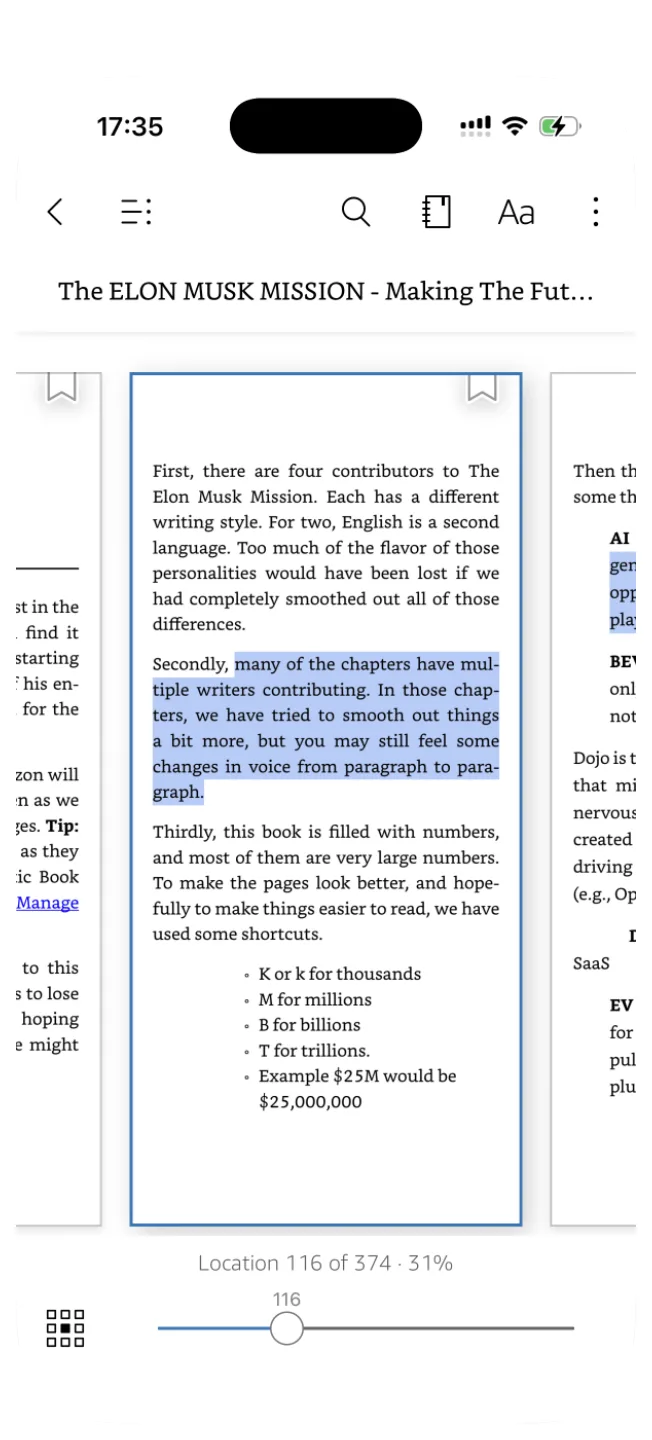
- Open the book and tap the middle of the page to show the toolbar
- Tap the notebook icon (third from the right) to open Annotations
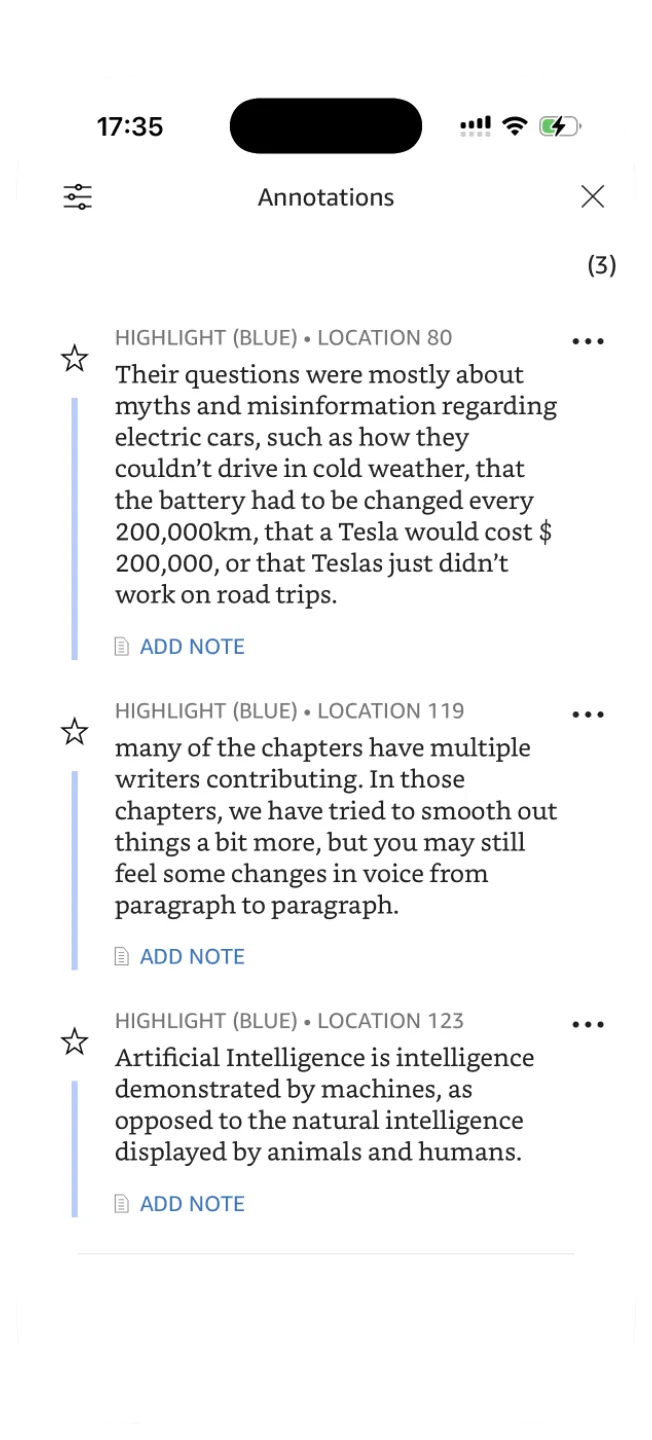
Annotations lists the book’s highlights with their color and location, and you can add a note to each one.
- Tap the share icon at the top right of Annotations. The Export Notebook screen opens
- Choose a citation style (None, APA, Chicago Style, or MLA) and tap Export
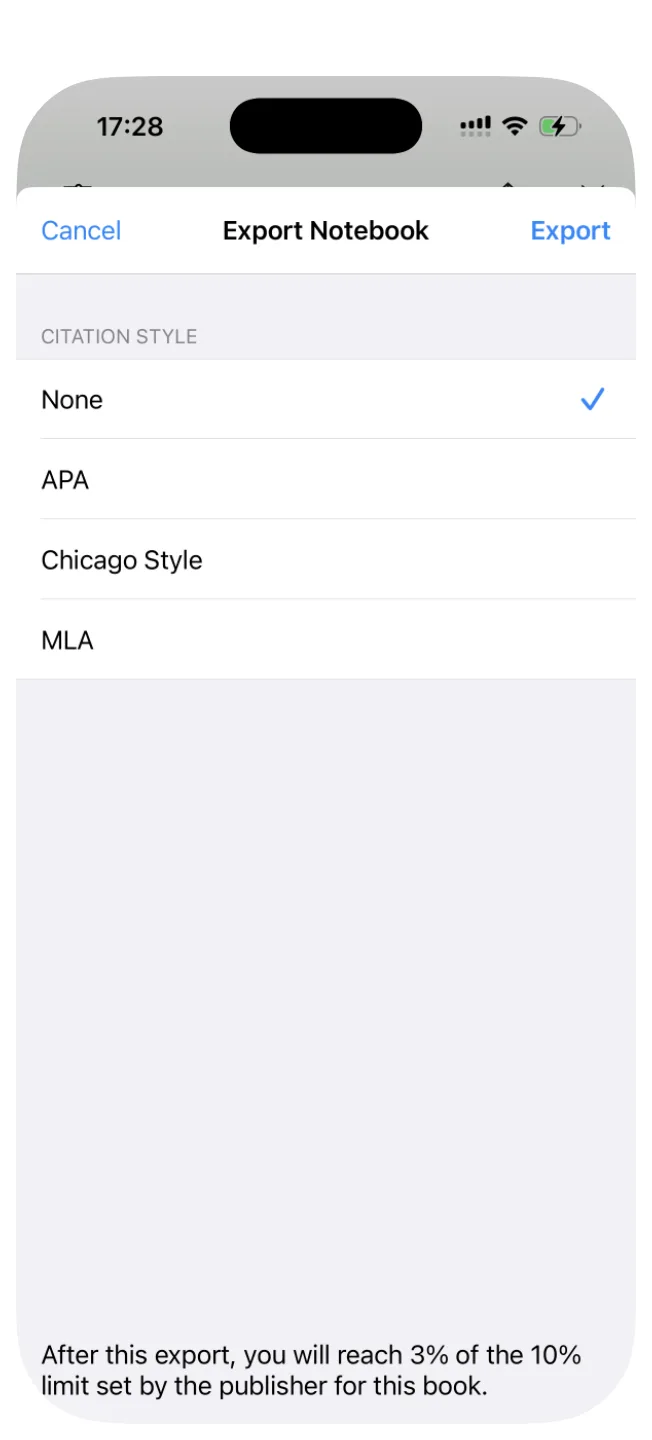
Before you export, read the line at the bottom of the screen. It tells you how much of the book’s export limit this export will use, for example “After this export, you will reach 3% of the 10% limit set by the publisher for this book.”
The export limit
Every Kindle book has a limit, set by its publisher, on how much you can take out of it. We saw 10% on one book and 1% on another. Once a book reaches its limit, new items stop exporting, and highlights past the limit are cut off with “...” on the Kindle Notebook page. They are still readable in full in Annotations. See Kindle copy limit explained for the details.
Kindle e-readers
Kindle e-readers save clippings to a file called My Clippings.txt that you can copy to a computer over USB. We didn’t have an e-reader to test this, so we don’t describe the steps here.
Collect every book’s highlights automatically
The built-in options work book by book, and you have to remember to do them. If you want every book’s highlights in one place without exporting each time, use a service that collects them for you.
The built-in features are enough if
- •You only want to reread a few books’ highlights
- •You export occasionally and don’t mind doing it book by book
- •You’re fine reading highlights inside the Kindle app
BookNotion fits if
- ✓You want every book’s highlights in one place
- ✓You keep reading notes in Notion
- ✓You want a reminder to look back at your highlights
- ✓You read on both a computer and an iPhone
Summary
- The Kindle Notebook page shows your highlights by book in a browser, but has no export button and only searches titles and authors
- The Kindle app on iPhone exports one book at a time: Annotations → share icon → Export Notebook
- Every book has a publisher export limit (we saw 10% and 1%). Past it, highlights are cut off, but Annotations still shows them in full
- To keep every book’s highlights in one place, or send them to Notion, use a service that collects them automatically